Title page
Neevia
docuPrinter TSE
user’s manual
version 7.4
ELECTRONIC END USER LICENSE AGREEMENT
For One (1) Server
This is an End User License Agreement. This is a contract. If you install this software, you must abide by the terms of this agreement. This license is applicable to all software products sold by Neevia Technology. The term software includes upgrades, modified versions or updates. This software is licensed and not sold. Only a personal, non-transferable and nonexclusive right to use the Neevia products is granted to the end user.
The following are definitions that should be noted by the user:
SERVER/VIRTUAL SERVER
This is a single computer or a virtual implementation of it, owned, rented or leased by a single individual or entity on which one or more applications load and execute software in the memory space of that computer. Software is installed on a server/virtual server for one or more users. All computers must be licensed to utilize Neevia software.
THIS IS A CONTRACT BETWEEN YOU AND NEEVIA TECHNOLOGY. YOU SHOULD CAREFULLY READ THIS LICENSING AGREEMENT AND MUST ACCEPT ALL THE TERMS AND CONDITIONS BEFORE INSTALLING THIS NEEVIA SOFTWARE. BY INSTALLING THE SOFTWARE, YOU ARE AGREEING TO BE BOUND BY THE TERMS AND CONDITIONS OF THIS LICENSE. IF YOU DO NOT AGREE TO THE TERMS OF THIS LICENSE, DO NOT INSTALL THE SOFTWARE, AND DO NOT USE THE SOFTWARE. IF YOU VIOLATE THIS AGREEMENT, YOU WILL BE SUBJECT TO LEGAL ACTION BY NEEVIA TECHNOLOGY.
Subject to the payment of applicable license fees, Neevia Technology grants you a nonexclusive right to use its accompanying Neevia software product and related documents (the Software) in the terms and conditions provided as follow:
LICENSE
Until such time as Neevia Technology has issued a valid serial number to you, you may only use this software for a 30-day trial period. You agree to remove any copies of the software after the expiration of the trial period. No license is issued to you until you are issued a valid serial number.
You cannot use a license for the software concurrently on different computers. You may install and use the Software in a single location on a hard disk or other storage device of one computer only.
(a) Server / Network Use:
You may keep one copy of the Software on a single file server only for the purposes of downloading and installing the Software onto a hard disk. You need a server license for each server/virtual server with the Software installed. There are no limitations on the number of clients that connect to the server and use the Software. A license for the SOFTWARE cannot be shared or used concurrently on different computers.
(b) Operating system or Language versions:
If you receive two or more copies of the Software with different operating systems or language versions, the total aggregate number of computers on which all versions of the Software are used may not exceed the Permitted Number of Computers. You may not rent, lease, sublicense, lend or transfer versions or copies of the Software you do not use, or Software contained on any unused media.
(c) Archiving:
You may make one copy of the Software solely for archival purposes. If the Software is an upgrade, you may use the Software only in conjunction with upgraded product. If you receive your first copy of the Software electronically, and a second copy on media afterward, the second copy can be used for archival purposes only.
For all Neevia Technology products, you agree that you will only use our software on a server and all applications that will access the server will reside on the server and you will not permit remote access to the software except through your application residing on the server. You agree to surrender your license(s) if you violate this agreement. If you violate this agreement, you will not receive a refund upon termination of this license. You agree not to utilize our software to violate the copyright of any third parties. If you do violate the copyright of a third party utilizing our software, you agree to hold Neevia Technology harmless and will indemnify Neevia Technology for any such activity even if the violation is unintentional.
COPYRIGHT
The Software is owned by Neevia Technology and/or its suppliers, and is protected by the copyright and trademark laws of the United States and related applicable laws. You may not copy the Software except as set forth in the "License" section. Any copies that you are permitted to make pursuant to this Agreement must contain the same copyright and other proprietary notices that appear on or in the Software.
You may not rent, lease, sub-license, transfer, or sell the Software. You may not modify, translate, reverse engineer, decompile, disassemble, or create derivative works based on the Software, except to the extent applicable law expressly prohibits such foregoing restriction. You may use the trademarks to identify the Software owner's name, or to identify printed output produced by the Software. Such use of any trademark does not give you any rights of ownership in that trademark.
NO WARRANTY LICENSED SOFTWARE (S) - "AS IS"
The Software is provided AS IS. NEEVIA TECHNOLOGY AND ITS SUPPLIERS MAKE NO WARRANTIES, EXPRESS OR IMPLIED, AS TO THE MERCHANTABILITY, QUALITY, NONINFRINGEMENT OF THIRD PARTY RIGHTS, FITNESS FOR A PARTICULAR PURPOSE, AND THOSE ARISING BY STATUTE OR OTHERWISE IN LAW OR FROM A COURSE OF DEALING OR USAGE OF TRADE. THE ENTIRE RISK AS TO THE QUALITY, RESULTS BY USING THE SOFTWARE, AND PERFORMANCE OF THE SOFTWARE IS WITH THE END USER. Some states or jurisdictions do not allow the exclusion or limitation of incidental, consequential or special damages, or the exclusion of implied warranties or limitations on how long an implied warranty may last, so the above limitations may not apply to you or your company.
LIMITATION OF REMEDIES AND LIABILITY
NEEVIA TECHNOLOGY OR ITS SUPPLIERS OR RESELLERS SHALL NOT UNDER ANY CIRCUMSTANCE BE LIABLE TO YOU FOR ANY DAMAGES, INCLUDING BUT NOT LIMITED TO SPECIAL, INDIRECT, OR CONSEQUENTIAL DAMAGES, LOST PROFITS OR LOST SAVINGS, OR FOR ANY CLAIM BY A THIRD PARTY, ARISING OUT OF THE USE OR INABILITY TO USE THE SOFTWARE, EVEN IF NEEVIA TECHNOLOLGY SHALL HAVE BEEN INFORMED OF THE POSSIBILITY OF SUCH DAMAGES, OR FOR ANY CLAIM BY ANY OTHER PARTY.
GENERAL
This Agreement shall be construed, interpreted, and governed by the laws of the State of Florida, excluding the application of its conflicts of law rules. The United Nations Convention on Contracts of the International Sale of Goods, will not govern this Agreement. If any part of this Agreement is found void and unenforceable, it will not affect the validity of the rest of the Agreement, which shall remain valid and enforceable according to its terms.
If you need to redistribute this product with your own software products, you need to contact Neevia and negotiate a separate licensing and royalty agreement.
You may not ship, transfer, or export the Software into any country or used in any manner prohibited by any export laws, restrictions or regulations.
UPGRADES
You must be properly licensed to install upgrades to Neevia Software products. Neevia upgrades replace and or supplement the previous product that formed the basis for your eligibility to for the upgrade. You may use the upgrade only in accordance with the terms of this Agreement. Upgrades may not be separated and used on separate computers.
GOVERNEMENT USERS
For United States government users, the Software and associated Documentation are deemed to be "commercial computer software" and "commercial computer documentation", respectively pursuant to DFAR 227.7202 and FAR 12.212(b) as applicable.
ENTIRE AGREEMENT
You acknowledge that you have read this Agreement, understand it and agree to be bounded by its terms and conditions. It is the complete and exclusive statement of the Agreement between us, which supersedes any proposal or prior agreement, oral or written, and other communication between us relating to the subject matter of this Agreement.
CONTACT INFORMATION
NEEVIA TECHNOLOGY
Email: info@neevia.com
Web: www.neevia.com
Installing and Uninstalling Neevia docuPrinter TSE
Select the Paper Size and Orientation
Select the output file name and format
Create PDF files from Microsoft Word
Create PDF files from Microsoft Excel
Create PDF files from Microsoft PowerPoint
Convert PostScript or Encapsulated PostScript (EPS) files
Create Encapsulated PostScript (EPS) files
Configure docuPrinter TSE from the administrative console (tweakDP)
Using PDFdesktop to create and/or manipulate PDF files
Append pages to a PDF document …
Encrypt a PDF document produced by docuPrinter TSE…
Insert additional pages at the beginning of an existing PDF
Introduction
Neevia docuPrinter TSE is a printer driver that can be used in a multi-user environment. That means you must print to it from your published application, just as you would with any other printer. Most applications have a Print dialog box command available in the File menu. To use docuPrinter TSE:
1. Connect to your terminal server;
2. Go into the File menu of your published application and select Print;
3. Select "docuPrinter" as a printer;
4. Click OK;
5. Wait for the docuPrinter dialog to appear;
System Requirements
• Windows 2008, 2012, 2016, 2019, 2022, 2025.
• At least 50 MBytes of free disk space.
• Memory requirement is heavily dependent on the nature of the job being converted – min 256 MB.
Output Formats
docuPrinter TSE supports the following output formats:
· PDF (Portable Document Format) v1.2, v1.3, v1.4, v1.5, v1.6, v1.7, v2.0;
· PDF/A1-b, PDF/A-2b, PDF/A-3b, PDF/A-2u, PDF/A-3u;
· PostScript level 1, 1.5, 2, 3;
· TIFF (uncompressed, LZW, Packbits, G3, G4);
· JPEG;
· PCX;
· PNG;
· BMP;
· EPS level 1, 1.5, 2, 3;
· Adobe PhotoShop (PSD);
· HP PCL-XL (color and mono);
· Text;
Installing and Uninstalling Neevia docuPrinter TSE
Before installing and/or using this product, please make sure you have carefully read the copyright notice and agreed to all of its terms. If you have any questions about the licensing agreement, please feel free to call (954) 981.9252 or email sales@neevia.com.
If you are using an earlier version of Neevia DocuPrinter on your system, it is recommended that you uninstall it before installing Neevia docuPrinter TSE v7.4.
To install Neevia docuPrinter TSE:
download and save the https://neevia.com/download/dptse file to your hard disk. After downloading the file, double-click on it and follow the instructions. The installation procedure automatically detects your operating system, copies the needed files into your system directory and installs Neevia docuPrinter TSE.
NOTE: you must be logged in as an Administrator to install docuPrinter TSE.
Unattended installation:
To perform an unattended (silent) installation launch docuPrinter TSE installer with
/sp /verysilent /norestart command line switches. Here is the full list of supported switches:
/SP
Disables the "This will install... Do you wish to continue?" prompt at the beginning of Setup.
/SILENT, /VERYSILENT
Instructs Setup to be silent or very silent. When Setup is silent the wizard and the background window are not displayed but the installation progress window is. When Setup is very silent the installation progress window is not displayed. Everything else is normal so for example error messages during installation are displayed and the startup prompt is (if you haven't disabled it with '/SP' command line option explained above). If a restart is necessary and the '/NORESTART' command is not used (see below) and Setup is silent, it will display a “Reboot now?” dialog. If it's very silent it will reboot without asking.
/NOCANCEL
Prevents the user from canceling during the installation process, by disabling the Cancel button and ignoring clicks on the close button. Useful along with /SILENT.
/NORESTART
Instructs Setup not to reboot even if it's necessary.
/DIR="x:\dirname"
Overrides the default directory name displayed on the Select Destination Directory wizard page. A fully qualified pathname must be specified.
/GROUP="folder name"
Overrides the default folder name displayed on the Select Start Menu Folder wizard page.
/NOMACRO
Prevents docuPrinter from installing the Microsoft Word, Excel, PowerPoint and Publisher macros.
/NOWORD
Disables the Microsoft Word docuPrinter macros installation. (Cannot be used with /NOMACRO switch)
/NOEXCEL
Disables the Microsoft Excel docuPrinter macros installation. (Cannot be used with /NOMACRO switch)
/NOPOWERPOINT
Disables the Microsoft PowerPoint docuPrinter macros installation. (Cannot be used with /NOMACRO switch)
/NOPUBLISHER
Disables the Microsoft Publisher docuPrinter macros installation. (Cannot be used with /NOMACRO switch)
/NOCONTEXTMENU
Prevents docuPrinter from installing the Create PDF or Image file with docuPrinter menu option available when a file is right clicked.
/NOCONTROLPANEL
Prevents docuPrinter from installing the Neevia DocuPrinter Control Panel icon.
/NOICONS
Instructs Setup not to create a Start Menu folder under Programs.
/NOPDFDESKTOP
Instructs Setup not to install PDFdesktop.
/NOTWEAKDP
Instructs Setup not to install tweakDP.
/user="username", /company="company name", /serial="serial number"
Use these switches to pass the registration info (username, company name and serial number) to the installer.
To remove Neevia docuPrinter TSE from your system:
1. Select Settings -> Control Panel from the Start menu.
2. In the Control Panel click Add/Remove programs and select docuPrinter TSE from the list.
3. Click the Add/Remove button to remove the program.
A confirmation prompt is displayed.
NOTE: In some circumstances the uninstaller is unable to remove the Neevia docuPrinter TSE printer from the Windows printing system. If this happens, you should reboot your computer and uninstall again.
Unattended uninstall:
To perform an unattended (silent) uninstall, launch unins000.exe from the folder where docuPrinter TSE has been installed with /verysilent /norestart command line switches. Here is the full list of supported switches:
/SILENT, /VERYSILENT
When specified, the uninstaller will not ask the user for startup confirmation or display a message stating that uninstall is complete. Shared files that are no longer in use are deleted automatically without prompting. Any critical error messages will still be shown on the screen. When '/VERYSILENT' is specified, the uninstallation progress window is not displayed. If a restart is necessary and the '/NORESTART' command isn't used (see below) and '/VERYSILENT' is specified, the uninstaller will reboot without asking.
/NORESTART
Instructs the uninstaller not to reboot even if it’s necessary.
Registering docuPrinter TSE
To register docuPrinter TSE, print something to it using the administrator account, then in the docuPrinter "Save As" window (screenshot) press Configure Output, after this in the next screen press the Register button – you should see this screen:
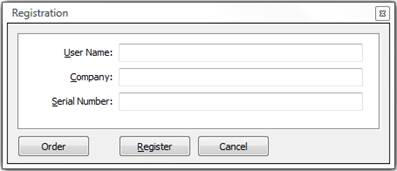
Enter the registration info from the email we sent you (make sure that you enter the User Name, Company Name and Serial Number EXACTLY as they are in the email message) and press the Register button.
Getting Started
Neevia docuPrinter TSE is a printer driver designed to be used in a multi-user environment. That means you must print to it from your published application, just as you would with any other printer. Most applications have a Print dialog box command available in the File menu. To use docuPrinter TSE:
1. Connect to the terminal server;
1. Go into the File menu of your published application and select Print;
2. Select "docuPrinter" as a printer;
3. Click OK;
4. Wait for the docuPrinter dialog to appear;
Select the Paper Size and Orientation
1. In the Start menu, choose Settings -> Printers.
2. Right-click the docuPrinter printer, then choose Properties.
3. Click the "Printing Preferences …" button. After this in the next screen click the "Advanced…" button. You should see this screen:
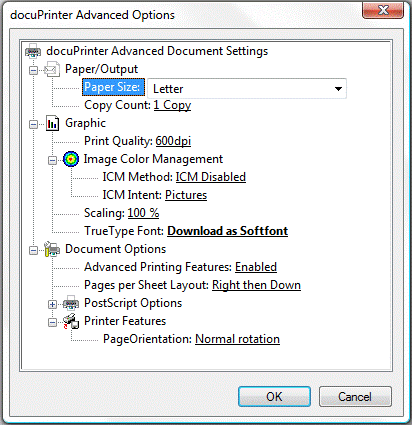
4. Adjust the values for the paper size, page orientation and scaling as desired.
5. To specify custom paper sizes, see Defining Custom Paper Sizes.
6. Click OK.
Define Custom Paper Sizes
To create a custom paper size:
1. In windows click Start, point to Settings, and then click Printers and Faxes.
2. On the File menu, click Server Properties.
3. On the Forms tab, select the Create a new form checkbox.
4. In Form name, type a name for the new form.
5. Under Form description (measurements), type the dimensions you want for the new paper size.
6. Click OK.
Select the output file name and format
When you print to Neevia docuPrinter TSE from a published application, docuPrinter prompts you for a destination folder for the output file – see the image below.
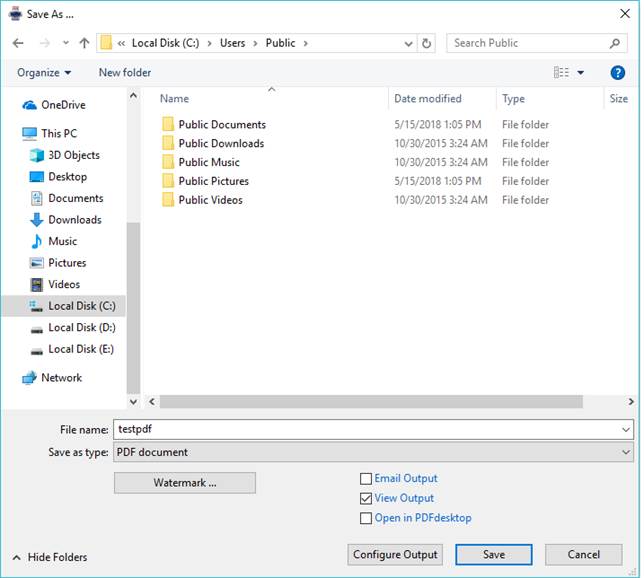
The default destination folder is the last folder you used, and the file name is constructed from the document name provided by the application. You may change either of these before clicking the Save button to save the output file.
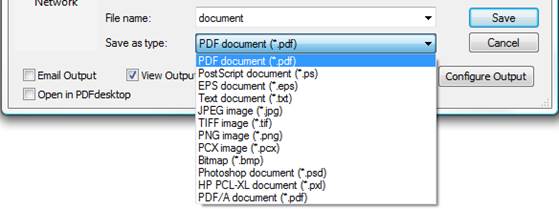
You can select the output document format by expanding the list next to "Save as type" and selecting the format you need
View document after printing
When you print to Neevia docuPrinter TSE from a published application, docuPrinter prompts you for a destination folder for the output file (screenshot). In that window select the desired output folder and document name, check the "View Output" checkbox and press the "Save" button – docuPrinter will create the output document and then display it on screen.
Email document after printing
When you print to Neevia docuPrinter TSE from a published application, docuPrinter prompts you for a destination folder for the output file (screenshot). In that window select the desired output folder and document name, check the "Email Output" checkbox and press the "Save" button – docuPrinter will create the output document and then launch the default email program from windows.
Watermark and Stationery
With docuPrinter TSE you can apply watermarks / stationery to the output document. To do this print to docuPrinter, then in the docuPrinter "Save As" screen (screenshot) select the output file format and press the Watermark button - you should see this screen:
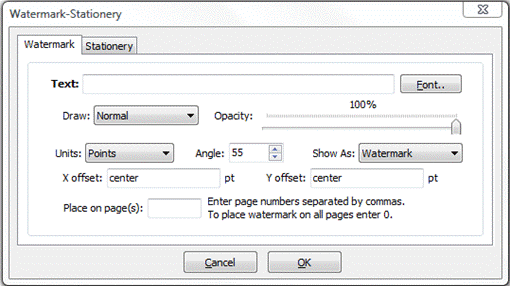
Enter your text and select the desired font. By modifying the values for X Offset, Y Offset and Angle you can change the watermark position on the resulting document. For the X coordinate, instead of numbers you can also use as values center, left and right - these will position the watermark in the center of the page, on the left or right.
For Y you have center, top and bottom which will cause the watermark to be placed in the center of the page on top or in the bottom. To position your watermark on the right lower corner use X offset = right and Y offset = bottom.
To specify the opacity level simply position the cursor on the desired value.
Enter 0 in the "Place on page(s)" textbox to place the watermark on all pages otherwise enter page numbers separated by commas
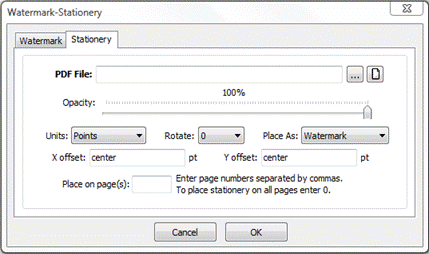
In case you would like to use an existing PDF file as stationery click on the "Stationery" tab and enter the path to the file. To have the stationery appear an all your pages enter 0 in the "Place on page(s)" textbox otherwise enter page numbers separated by commas.
Create PDF files
When you print to Neevia DocuPrinter TSE from a published application, docuPrinter prompts you for a destination folder for the output file (screenshot). In that window select PDF as output format then press the "Configure Output" button to edit the output settings – the following screen will be displayed:
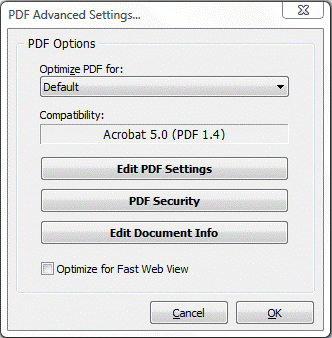
Optimize for
For your convenience there are several sets of predefined settings for creating PDF files. These settings are designed to balance file size with quality, depending on how the PDF file is to be used:
• Default - is intended to be useful across a wide variety of uses, possibly at the expense of a larger output file. All color and grayscale images are downsampled at 72 dpi, monochrome images at 300 dpi; subsets of all fonts used in the file are embedded; and all information is compressed. PDF files created using this setting are compatible with Acrobat 4.0 (and later).
• Screen - is for PDF files that will be displayed on the World Wide Web or an intranet, or that will be distributed through an e-mail system for on-screen viewing. This set of options uses compression, downsampling, and a relatively low resolution; converts all colors to RGB; maintains compatibility with Acrobat 3.0; to create a PDF file that is as small as possible.
• Printer - is for PDF files that are intended for desktop printers, digital copiers, publishing on a CD-ROM, or to send to a client as a publishing proof. In this set of options, file size is still important, but it is not the only objective. This set of options uses compression and downsampling to keep the file size down, tags everything for color management, and prints to a medium resolution to create a reasonably accurate rendition of the original document.
• Prepress - is for PDF files that will be printed as high-quality final output to an imagesetter or platesetter, for example. In this case, file size is not a consideration. The objective is to maintain all the information in a PDF file that a commercial printer or service bureau will need to print the document correctly. This set of options downsamples color and grayscale images at 300 dpi, monochrome images at 1200 dpi, embeds subsets of all fonts used in the file, prints to a higher resolution, and uses other settings to preserve the maximum amount of information about the original document.
PDF Settings
To edit the PDF settings click the "Edit PDF settings" button – you should see this screen
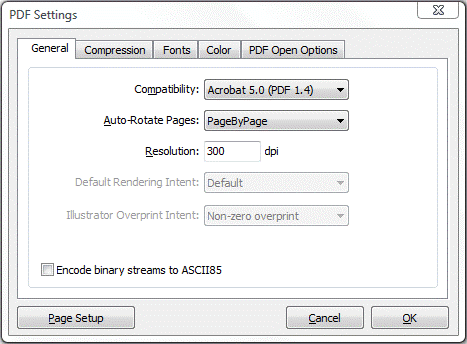
There are 5 tabs on the top of the screen:
General - Specify compatibility level, document resolution, optimization and other general information;
Compression - choose appropriate compression options to reduce the size of the output PDF document;
Fonts - select the font embedding options;
Color - select the color profiles for the output PDF file;
PDF Open Options - select the color profiles for the output PDF file.
General Tab
Compatibility
Select the PDF document compatibility level (a.k.a. PDF version).
Auto-Rotate Pages
Auto-Rotate Pages automatically rotates pages based on the orientation of the text. For example, some pages (such as those containing tables) in a document may require the document to be turned sideways to be read. Choose "None" to disable the Auto-Rotate Pages option. Choose "All" to rotate all pages in the document based on the orientation of the majority of text. Choose "PageByPage" to rotate each page based on the direction of the text on that page.
Resolution
Here you can define the output document resolution. Usually, a higher resolution setting will result in larger but higher quality PDF, while a lower setting will result in smaller but lower quality PDF. You can enter a value from 72 to 2400.
Important: Low resolution is ideal for screen viewing. However, if high-quality paper print or the accurate control of character position is required, you should choose resolution above (include) 600dpi.
Encode binary streams to ASCII85
Enabling this option will force docuPrinter to encode binary strings in the PDF file with ASCII85 algorithm.
Compression Tab
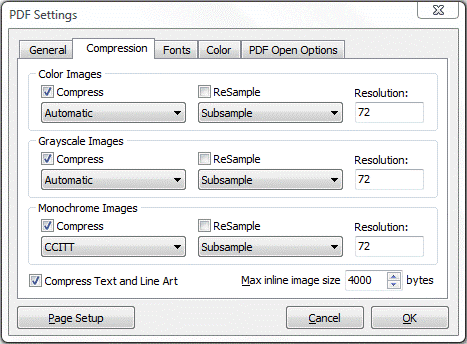
Neevia docuPrinter TSE allows you to compress images (bitmaps), text, and graphics (line art). ReSampling feature provides a further reduction to very large or high-resolution images.
Since the effectiveness of compression is highly data dependent for the best result, you might want to try different compression setting for different kinds of data sources.
Compression/Image Quality
Set the compression to be applied to color, grayscale, and monochrome images. For color and grayscale images, also set the image quality. For color or grayscale images, choose ZIP to apply the compression that works well on images with large areas of single colors or repeating patterns, such as screen shots, simple images created with paint programs, and black-and-white images that contain repeating patterns. Choose JPEG, quality minimum to maximum, to apply the compression that is suitable for grayscale or color images, such as continuous-tone photographs that contain more detail than can be reproduced on-screen or in print. Choose Automatic to determine automatically the best quality for color and grayscale images.
NOTE: For monochrome images, choose CCITT or ZIP compression.
Make sure that monochrome images are scanned as monochrome and not as grayscale. Scanned text is sometimes saved as grayscale images by default. Grayscale text compressed with the JPEG compression method is “muddy” at best and may be unreadable.
ReSample
To resample color, grayscale, or monochrome images, docuPrinter combines pixels in a sample area to make one larger pixel. You provide the resolution of your output device in dots per inch (dpi) and select the resample algorithm:
Average Downsample – this algorithm averages the pixels in a sample area and replaces the entire area with the average pixel color at the specified resolution.
Subsample – this algorithm chooses a pixel in the center of the sample area and replaces the entire area with that pixel at the specified resolution. Subsample significantly reduces the conversion time compared with downsampling but results in images that are less smooth and continuous.
Bicubic Downsample – this algorithm uses a weighted average to determine pixel color and usually yields better results than the simple averaging method of downsampling. Bicubic is the slowest but most precise method, resulting in the smoothest tonal gradations.
NOTE: Resampling monochrome images can have unexpected viewing results, such as no image display. If this happens, turn off resampling and convert the file again. This problem is most likely to occur with subsample and least likely with bicubic downsample.
Max inline image size
Specifies the maximum size of an inline image in bytes. For images larger than this size, docuPrinter will create a XObject instead of embedding the image into the context stream. The default value is 4000. Note that redundant inline images must be embedded each time they occur in the document, while multiple references can be made to a single XObject image. Therefore it may be advantageous to set a small or zero value if the source document is expected to contain multiple identical images, reducing the size of the generated PDF.
Fonts Tab
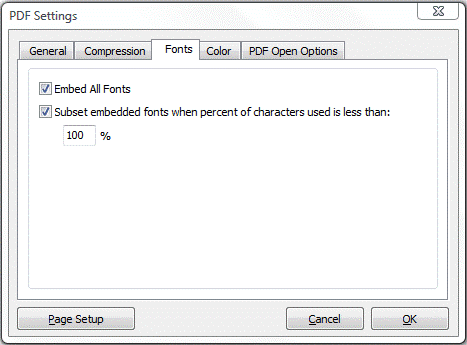
The Fonts tab allows you to embed the fonts in the resulting PDF file.
Select Subset embedded font option to include only those characters of a font that are used in the PDF document, to reduce document size. A "threshold" is specified to tell if font-subset is necessary. If the percentage of used characters (compared with the total characters of the particular font) exceeds this threshold, the entire font is embedded.
Color Tab
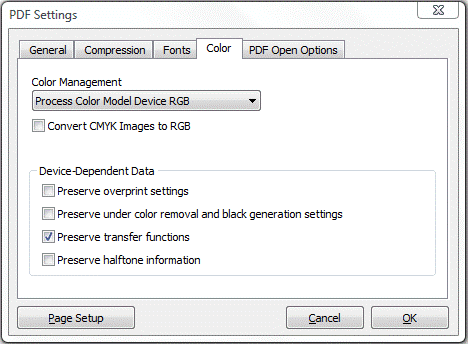
Process Color Model Device RGB
Sets the color space to be used for device-dependent colors in the output document to DeviceRGB. NOTE: this does not affect images and shadings.
Process Color Model Device CMYK
Sets the color space to be used for device-dependent colors in the output document to DeviceCMYK. NOTE: this does not affect images and shadings.
Process Color Model Device Gray
Sets the color space to be used for device-dependent colors in the output document to DeviceGray. NOTE: this does not affect images and shadings.
Convert CMYK Images to RGB
Enabling this option will force docuPrinter to convert CMYK images from the original document into RGB images.
Device-Dependent Data
Choose any of the options if you are working with documents created with high-end documentation and graphics applications, such as Adobe Illustrator and Adobe InDesign. For more information, see the documentation that came with the application.
"Preserve overprint settings" retains any overprint settings in files being converted to PDF. Overprinted colors are two or more inks printed on top of each other. For example, when a cyan ink prints over a yellow ink, the resulting overprint is a green color. Without overprinting, the underlying yellow would not be printed, resulting in a cyan color.
Transfer functions are used for artistic effect and to correct for the characteristics of a specific output device. For example, a file that is intended for output on a particular imagesetter may contain transfer functions that compensate for the dot gain inherent with that printer.
"Preserve under color removal and black generation" retains these settings if they exist in the PostScript file. Black generation calculates the amount of black to be used when trying to reproduce a particular color. Undercolor removal (UCR) reduces the amount of cyan, magenta, and yellow components to compensate for the amount of black that was added by the black generation.
Because it uses less ink, UCR is generally used for newsprint and uncoated stock.
"Preserve Transfer Functions" retains the transfer functions traditionally used to compensate for dot gain or dot loss that may occur when an image is transferred to film. Dot gain occurs when the ink dots that make up a printed image are larger (for example, due to spreading on paper) than in the halftone screen; dot loss occurs when the dots print smaller.
With this option, the transfer functions are kept as part of the file, and are applied to the file when the file is output.
"Preserve halftone information" retains any halftone information in files. Halftone information consists of dots that control how much ink is deposited by halftone devices at a specific location on the paper. Varying the dot size and density creates the illusion of variations of gray or continuous color.
For a CMYK image, four halftone screens are used: one for each ink used in the printing process. In traditional print production, a halftone is produced by placing a halftone screen between a piece of film and the image and then exposing the film. Electronic equivalents, such as the ones in Adobe Photoshop, let users specify the halftone screen attributes before producing the film or paper output. Halftone information is intended for use with a particular output device.
PDF Open Options Tab
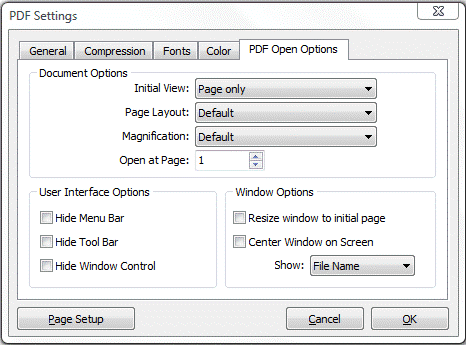
The PDF Open Options are organized into three areas: Document Options, Window Options, and User Interface Options. The Document Options control the appearance of the document within the document window, such as the magnification level and how it scrolls. The Window Options apply to the document window itself in relationship to the screen area of the user's monitor. The User Interface Options determine which controls appear when the user opens the document.
Document Options
Determine which panes open, the page layout and magnification, and the page number at which the document opens. Initial View determines which panes and tabs are displayed in the application window by default. Page and Bookmarks opens the document pane and the Bookmarks tab. Page Layout determines whether the document is viewed in single-page, facing page, continuous page, or continuous facing page mode. Magnification sets the zoom level at which the document will display when opened. Default uses the magnification set by the user. Open at Page sets the page at which the document opens (usually page 1).
NOTE: Setting Default for the Magnification and Page Layout options uses the individual users' settings in their PDF viewer software.
Window Options
Determine how the window adjusts in the screen area when a user opens the document. Resize Window to Initial Page adjusts the document window to fit snugly around the opening page, according to the options that you selected under Document Options. Center Window on Screen positions the window in the center of the screen area. Show File Name shows the file name in the title bar of the window. Show Document Title shows the document title in the title bar of the window. The document title is obtained from the Description panel of the Document Properties dialog box.
User Interface Options
Determine which parts of the interface - the menu bar, the toolbar, and the window controls are hidden.
PDF Security
All Neevia products enforce the restrictions set by PDF Security (encryption). However, not all third party products fully support and respect these settings. Recipients using such third party products may be able to bypass some of the restrictions you have set.
To encrypt the output PDF document, in "PDF Advanced Settings …" screen (screenshot) click the PDF Security button. The following screen will be displayed:
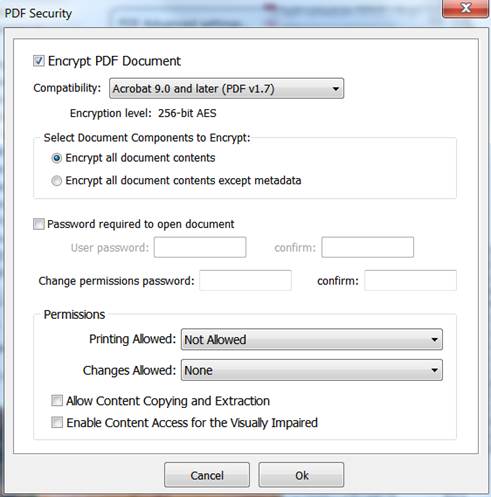
Selecting the Encrypt PDF Document checkbox will turn on the security options and apply them to the PDF file.
Encryption options:
· use the 128 bit options if users of Acrobat 5.0 or higher need to be able to read the document.
· use the 265 bit option if you need the strongest possible encryption and the user of the PDF file has or has access to Acrobat 9.0 or greater.
Restrictions can be set such that users of the PDF cannot:
· open the document without password: this option will force the user of the PDF file to enter a password before Acrobat will allow it to be viewed.
· change permissions and passwords without password: this option will force the user of the PDF file to enter a password before changing the security permissions and passwords.
NOTE: There are programs available to crack the password. The longer the password, the harder it is to crack. Please consider this when selecting a password.
Permissions (128/256 bits encryption):
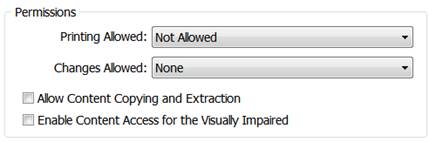
Printing Allowed
Specify the quality of printing for the PDF document:
· Not Allowed - prevents users from printing the document.
· Low Resolution - allows users to print the document at a resolution no higher than 150-dpi. Printing may be slower because each page is printed as a bitmapped image.
· Fully Allowed – users can print at any resolution, directing high-quality vector output to PostScript and other printers that support advanced high-quality printing features.
Changes Allowed
Define which editing actions are allowed in the PDF document:
· None - prevents the user from making any changes to the document, including filling in signature and form fields.
· Only Document Assembly - allows users to insert, delete, and rotate pages, as well as create bookmarks and thumbnail pages.
· Only Form Field Fill-in or Signing - allows users to fill in forms and add digital signatures. This option doesn't allow users to add comments or create form fields.
· Comment Authoring, Form Field Fill-in or Signing – users are allowed to fill in forms and add digital signatures and comments.
· General Editing, Comment and Form Field Authoring – users can change the document using any method listed in the Changes Allowed menu, except remove pages.
Allow Content Copying and Extraction
Lets users select and copy the contents of the PDF document. It also allows utilities that need access to the contents of a PDF file, such as Acrobat Catalog, get to those contents.
Enable Content Access for the Visually Impaired
Lets visually impaired users read the document with screen readers. This option doesn't allow users to copy or extract the document's contents.
Create PDF files from Microsoft Word
Click the Neevia docuPrinter tab on the Microsoft Word main ribbon or the File->Print menu item to convert your document to PDF.
When you click the docuPrinter tab the following screen will be displayed:
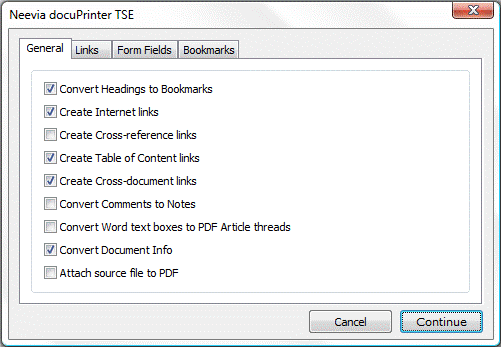
General Tab
|
Option |
Effect |
|
Convert Headings to Bookmarks |
Converts Word headings to PDF bookmarks |
|
Create Internet links |
Converts Internet hyperlinks to PDF links |
|
Create Cross-reference links |
Converts cross-references in the Word file into PDF links |
|
Create Table of Content links |
Converts table-of-contents entries into PDF links |
|
Create Cross-document links |
Converts hyperlinks that point to other documents into PDF links |
|
Convert Comments to Notes |
Converts Word comments to PDF text notes |
|
Convert Word text boxes to PDF Article Threads |
Converts Word Text boxes to PDF article threads |
|
Convert Document Info |
Converts Word document properties (for example, author or creation date) to PDF document information |
Links Tab
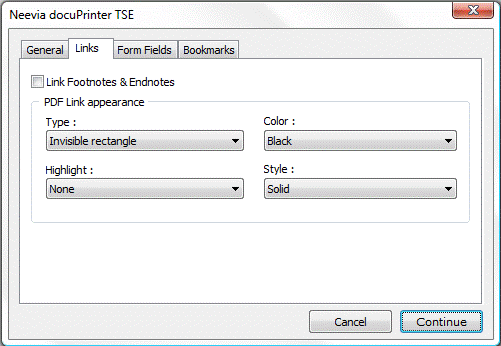
The PDF Link Appearance group controls the appearance of links when the PDF file is viewed. The Type list box allows you to select whether the links will be invisible, visible with thin border, or visible with thick border. The Highlight list box allows you to select how links are highlighted when they are clicked. The four choices are None, Invert, Outline, and Inset. The Color list box sets the color of the links. The Style list box selects between solid or dashed lines for links border.
Link Footnotes & Endnotes
Enabling this option will force docuPrinter to convert footnotes and endnotes into PDF links to the respective citations.
Form Fields Tab
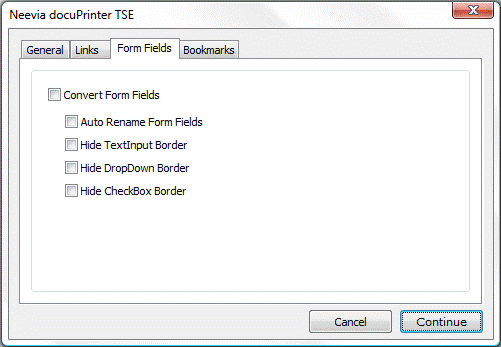
Convert Form Fields enables word form fields conversion into PDF form fields.
Auto Rename Form Fields automatically renames form fields that have the same name so all the fields in the PDF document will have unique names.
Hide TextInput Border disables the text field border in the PDF file.
Hide DropDown Border disables the combobox/listbox field border in the PDF file.
Hide CheckBox Border disables the checkbox field border in the PDF file.
Bookmarks Tab
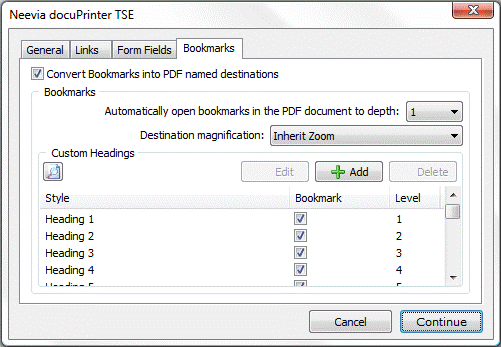
Convert Bookmarks into PDF named destination converts word bookmarks into PDF named destinations.
Automatically open bookmarks in the PDF document to depth collapses or expands the document headings when the PDF is opened.
Destination magnification controls the open magnification of the bookmark destination.
Custom Headings
In the Bookmark column, deselect bookmarks for headings (or other items) that you don't want to be converted. You can change the level of the bookmark associated with a heading (or other item) only if that heading (or item) is selected. If a file contains paragraphs formatted using discontinuous heading levels, docuPrinter inserts blank bookmarks for each of the missing levels.
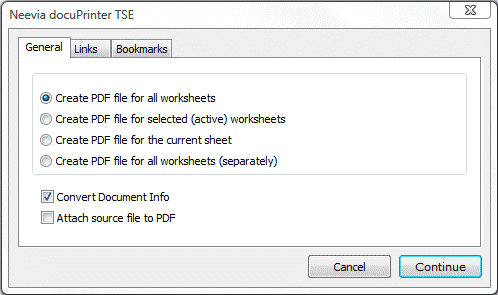
Create PDF files from Microsoft Excel
Click the Neevia docuPrinter tab on the Microsoft Excel main ribbon to convert your document to PDF.
The screen below will be displayed:
.
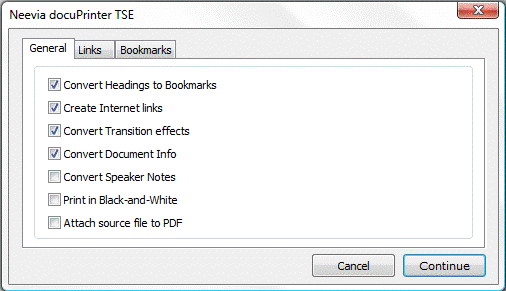
Create PDF files from Microsoft PowerPoint
Click the Neevia docuPrinter tab on the Microsoft PowerPoint main ribbon to convert your document to PDF. The following screen will be displayed:
Create PDF/A files
PDF/A was defined as a subset of PDF 1.4 and is mainly used for long-term archiving purposes.
With docuPrinter you can create PDF/A-1b, PDF/A-2b, PDF/A-3b, PDF/A-2u and PDF/A-3u documents which ensure a reliable reproduction of the visual appearance of the original.
To create PDF/A files, print to docuPrinter, then in the "Save As" window (see screenshot below) select "PDF/A document" as output file format and press the Save button. To switch from PDF/A-1b, which is the default option, to the other PDF/A options click Configure Output then select PDF/A-2b, 2u, 3b or 3u and click OK.
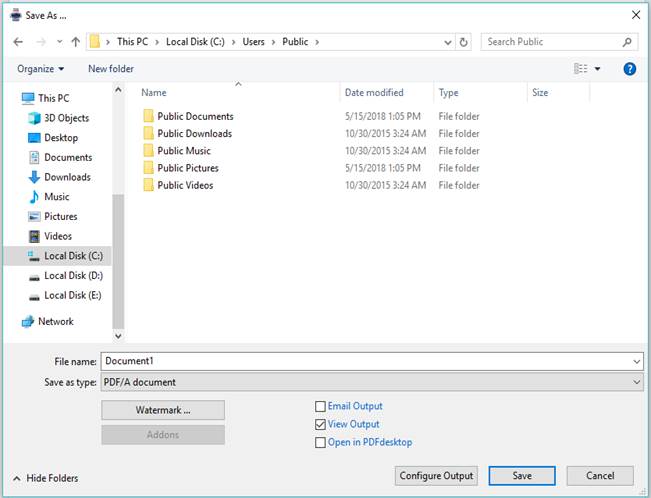
PDF/A standard requires that resulting files must include embedded fonts, device-independent color and XMP metadata.
Convert PostScript or Encapsulated PostScript (EPS) files
Neevia docuPrinter TSE can convert PostScript or EPS (Encapsulated PostScript) files. To do this – launch Neevia docuPrinter (Start->Programs->docuPrinter->docuPrinter) – the following screen will be displayed:
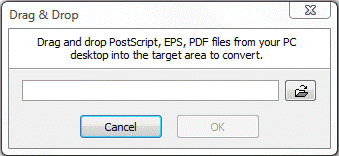
then drag-and-drop the PostScript or EPS file you want to convert into the docuPrinter window and press the OK (Continue) button - you will be redirected to the docuPrinter Save As window (screenshot).
Create PostScript files
To create a PostScript file, print to docuPrinter TSE, then in the "Save As" screen (screenshot) select "PostScript document (*.ps)" as output file format and press the Save button.
To configure the advanced output settings click the Configure Output button – you should see the following screen:
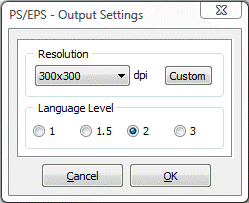
In this screen you can select the output resolution and the PostScript language level.
Create Encapsulated PostScript (EPS) files
To create an EPS file print to docuPrinter TSE, then in the "Save As" screen (screenshot) select "EPS document (*.eps)" as output file format and press the Save button.
To configure the advanced output settings click the Configure Output button – you should see the following screen:
In this screen you can select the output resolution and the EPS language level.
Create JPEG files
Please note that JPEG is a compression method specifically intended for continuous-tone images such as photographs, not for graphics. For anything other than pages containing simple images the ”lossy” compression of the jpeg format will result in poor quality output regardless of the input. To learn more about the distinction, consult a reference about uses and abuses of JPEG, such as the JPEG FAQ - http://www.faqs.org/faqs/jpeg-faq/
To create a JPEG file print to docuPrinter, then in the "Save As" screen (screenshot) select "JPEG image (*.jpg)" as output file format and press the Save button.
To configure the advanced output settings click the Configure Output button – you should see the following screen:
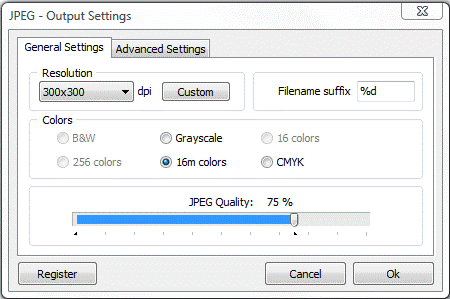
General Settings Tab
Resolution sets the JPEG resolution.
JPEG Quality sets the output quality level according to the widely used IJG quality scale, which balances the extent of compression against the fidelity of the image when reconstituted. Lower values drop more information from the image to achieve higher compression, and therefore have lower quality when reconstituted.
Colors tab allows you to select the number of colors in the output document.
Filename suffix
Since the jpeg format doesn’t support multi-page files, when printing documents that have more than 1 page, docuPrinter will produce a jpeg file for each page of the original document. The filename suffix allows you to control how the single page files will be named - if you set %d docuPrinter will add the page number to the file name. You can also control the number of digits used in the file name by replacing %d with %0Nd where N is the number of digits you want to have, for example %03d will force docuPrinter to produce files with names like this: 'filename001.jpg', ... , 'filename010.jpg', ... %04d will produce: 'filename0001.jpg', ... , 'filename0010.jpg', ...
Advanced Settings Tab
Text antialiasing
Graphics antialiasing
These options control the use of subsample antialiasing. Their use is highly recommended for producing high quality rasterizations. The subsampling box size should be 4 bits for optimum output, but smaller values can be used for faster rendering. Antialiasing is enabled separately for text and graphics content. Allowed values are None, 1 bit, 2 bits or 4 bits.
Note that because of the way antialiasing blends the edges of shapes into the background when they are drawn some files that rely on joining separate filled polygons together to cover an area may not render as expected with Graphics antialiasing at 2 or 4 bits. If you encounter strange lines within solid areas, try rendering that file again with Graphic antialiasing at 1 bit.
Image interpolation
Select "On" to enable image interpolation for all images, improving image quality for scaled images at the expense of speed.
Well Tempered Screening
If “On”, then the Well Tempered Screening algorithm is used for halftoning. Otherwise, a rational tangent algorithm is chosen, which will typically result in significant differences between the screen angle and the ruling requested, and actually rendered. Currently, the performance of WTS is reasonably good when rendering to a full page buffer, but not optimized for banded mode.
Use CIE color space
Select “On” to remap the device-dependent color values through a CIE color space. This can improve the conversion of CMYK documents to RGB.
Create TIFF files
TIFF is a loose collection of formats, now largely superseded by PNG except in applications where backward compatibility or special compression is required.
To create a TIFF file print to docuPrinter, then in the docuPrinter "Save As" screen (screenshot) select "TIFF image (*.tif)" as output file format and press the Save button.
To configure the advanced output settings click the Configure Output button – you should see the following screen:
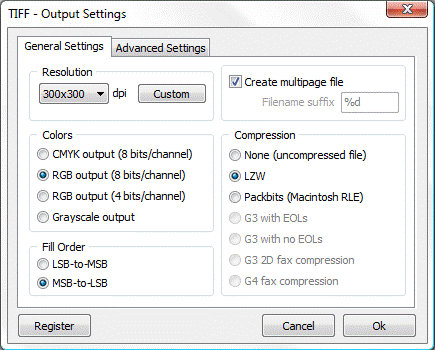
General Settings Tab
Resolution sets the TIFF resolution.
Colors tab allows you to select the number of colors in the output document.
Compression sets the tiff compression. Note that G3 with EOLs, G3 with no EOLs, G3 2D fax compression and G4 fax compression can only be set for Grayscale documents.
Filename suffix
If the "Create multipage file" checkbox is not checked, when printing documents that have more than 1 page, docuPrinter will produce a tiff file for each page of the original document. The filename suffix allows you to control how the single page files will be named - if you set %d docuPrinter will add the page number to the file name. You can also control the number of digits used in the file name by replacing %d with %0Nd where N is the number of digits you want to have, for example %03d will force docuPrinter to produce files with names like this: 'filename001.tif', ... , 'filename010.tif', ... %04d will produce: 'filename0001.tif', ... , 'filename0010.tif', ...
Advanced Settings Tab
Text antialiasing
Graphics antialiasing
These options control the use of subsample antialiasing. Their use is highly recommended for producing high quality rasterizations. The subsampling box size should be 4 bits for optimum output, but smaller values can be used for faster rendering. Antialiasing is enabled separately for text and graphics content. Allowed values are None, 1 bit, 2 bits or 4 bits.
Note that because of the way antialiasing blends the edges of shapes into the background when they are drawn some files that rely on joining separate filled polygons together to cover an area may not render as expected with Graphics antialiasing at 2 or 4 bits. If you encounter strange lines within solid areas, try rendering that file again with Graphic antialiasing at 1 bit.
Image interpolation
Select On to enable image interpolation for all images, improving image quality for scaled images at the expense of speed.
Well Tempered Screening
If On, then the Well Tempered Screening algorithm is used for halftoning. Otherwise, a rational tangent algorithm is chosen, which will typically result in significant differences between the screen angle and ruling requested, and actually rendered. Currently, the performance of WTS is reasonably good when rendering to a full page buffer, but not optimized for banded mode.
Use CIE color space
Select On to remap the device-dependent color values through a CIE color space. This can improve the conversion of CMYK documents to RGB.
Create PNG files
PNG (pronounced 'ping') stands for Portable Network Graphics, and is the recommended format for high-quality images. It supports full quality color, offers excellent lossless compression of the image data, and is widely supported.
To create a PNG file print to docuPrinter, then in the docuPrinter "Save As" screen (screenshot) select "PNG image (*.png)" as output file format and press the Save button.
To configure the advanced output settings click the Configure Output button and the following screen will be displayed:
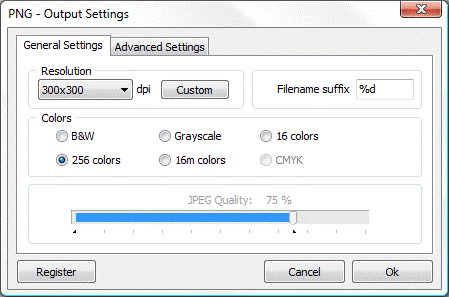
General Settings Tab
Resolution sets the PNG resolution.
Colors tab allows you to select the number of colors in the output document.
Filename suffix
Since the png format doesn’t support multi-page files, when printing documents that have more than 1 page, docuPrinter will produce a jpeg file for each page of the original document. The filename suffix allows you to control how the single page files will be named - if you set %d docuPrinter will add the page number to the file name. You can also control the number of digits used in the file name by replacing %d with %0Nd where N is the number of digits you want to have, for example %03d will force docuPrinter to produce files with names like this: 'filename001.png', ... , 'filename010.png', ... %04d will produce: 'filename0001.png', ... , 'filename0010.png', ...
Advanced Settings Tab
Text antialiasing
Graphics antialiasing
These options control the use of subsample antialiasing. Their use is highly recommended for producing high quality rasterizations. The subsampling box size should be 4 bits for optimum output, but smaller values can be used for faster rendering. Antialiasing is enabled separately for text and graphics content. Allowed values are None, 1 bit, 2 bits or 4 bits.
Note that because of the way antialiasing blends the edges of shapes into the background when they are drawn some files that rely on joining separate filled polygons together to cover an area may not render as expected with Graphics antialiasing at 2 or 4 bits. If you encounter strange lines within solid areas, try rendering that file again with Graphic antialiasing at 1 bit.
Image interpolation
Select On to enable image interpolation for all images, improving image quality for scaled images at the expense of speed.
Well Tempered Screening
If On, then the Well Tempered Screening algorithm is used for halftoning. Otherwise, a rational tangent algorithm is chosen, which will typically result in significant differences between the screen angle and ruling requested, and actually rendered. Currently, the performance of WTS is reasonably good when rendering to a full page buffer, but not optimized for banded mode.
Use CIE color space
Select On to remap the device-dependent color values through a CIE color space. This can improve the conversion of CMYK documents to RGB.
Create PCX files
PCX is an image format sometimes used on MS Windows. It has some support for image compression and alternate color spaces, and so can be a useful way to output CMYK.
To create a PCX file print to docuPrinter, then in the docuPrinter "Save As" screen (screenshot) select "PCX image (*.pcx)" as output file format and press the Save button.
To configure the advanced output settings click the Configure Output button – you should see the following screen:
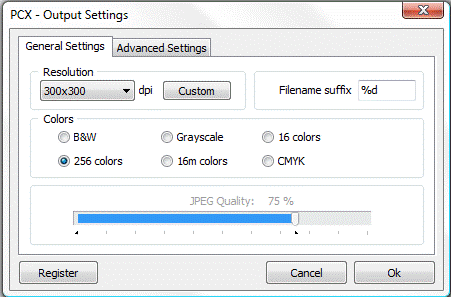
General Settings Tab
Resolution sets the PCX resolution.
Colors tab allows you to select the number of colors in the output document.
Filename suffix
Since the PCX format doesn’t support multi-page files, when printing documents that have more than 1 page, docuPrinter will produce a jpeg file for each page of the original document. The filename suffix allows you to control how the single page files will be named - if you set %d docuPrinter will add the page number to the file name. You can also control the number of digits used in the file name by replacing %d with %0Nd where N is the number of digits you want to have, for example %03d will force docuPrinter to produce files with names like this: 'filename001.pcx', ... , 'filename010.pcx', ... %04d will produce: 'filename0001.pcx', ... , 'filename0010.pcx', ...
Advanced Settings Tab
Text antialiasing
Graphics antialiasing
These options control the use of subsample antialiasing. Their use is highly recommended for producing high quality rasterizations. The subsampling box size should be 4 bits for optimum output, but smaller values can be used for faster rendering. Antialiasing is enabled separately for text and graphics content. Allowed values are None, 1 bit, 2 bits or 4 bits.
Note that because of the way antialiasing blends the edges of shapes into the background when they are drawn some files that rely on joining separate filled polygons together to cover an area may not render as expected with Graphics antialiasing at 2 or 4 bits. If you encounter strange lines within solid areas, try rendering that file again with Graphic antialiasing at 1 bit.
Image interpolation
Select On to enable image interpolation for all images, improving image quality for scaled images at the expense of speed.
Well Tempered Screening
If On, then the Well Tempered Screening algorithm is used for halftoning. Otherwise, a rational tangent algorithm is chosen, which will typically result in significant differences between the screen angle and ruling requested, and actually rendered. Currently, the performance of WTS is reasonably good when rendering to a full page buffer, but not optimized for banded mode.
Use CIE color space
Select On to remap the device-dependent color values through a CIE color space. This can improve the conversion of CMYK documents to RGB.
Create BMP files
BMP is a simple uncompressed image format commonly used in MS Windows.
To create a BMP file print to docuPrinter TSE, then in the docuPrinter "Save As" screen (screenshot) select "Bitmap (*.bmp)" as output file format and press the Save button.
To configure the advanced output settings click the Configure Output button – you should see the following screen:
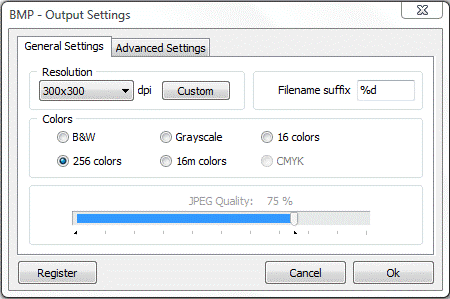
General Settings Tab
Resolution sets the BMP resolution.
Colors tab allows you to select the number of colors in the output document.
Filename suffix
Since the BMP format doesn’t support multi-page files, when printing documents that have more than 1 page, docuPrinter will produce a jpeg file for each page of the original document. The filename suffix allows you to control how the single page files will be named - if you set %d docuPrinter will add the page number to the file name. You can also control the number of digits used in the file name by replacing %d with %0Nd where N is the number of digits you want to have, for example %03d will force docuPrinter to produce files with names like this: 'filename001.bmp', ... , 'filename010.bmp', ... %04d will produce: 'filename0001.bmp', ... , 'filename0010.bmp', ...
Advanced Settings Tab
Text antialiasing
Graphics antialiasing
These options control the use of subsample antialiasing. Their use is highly recommended for producing high quality rasterizations. The subsampling box size should be 4 bits for optimum output, but smaller values can be used for faster rendering. Antialiasing is enabled separately for text and graphics content. Allowed values are None, 1 bit, 2 bits or 4 bits.
Note that because of the way antialiasing blends the edges of shapes into the background when they are drawn some files that rely on joining separate filled polygons together to cover an area may not render as expected with Graphics antialiasing at 2 or 4 bits. If you encounter strange lines within solid areas, try rendering that file again with Graphic antialiasing at 1 bit.
Image interpolation
Select On to enable image interpolation for all images, improving image quality for scaled images at the expense of speed.
Well Tempered Screening
If On, then the Well Tempered Screening algorithm is used for halftoning. Otherwise, a rational tangent algorithm is chosen, which will typically result in significant differences between the screen angle and ruling requested, and actually rendered. Currently, the performance of WTS is reasonably good when rendering to a full page buffer, but not optimized for banded mode.
Use CIE color space
Select On to remap the device-dependent color values through a CIE color space. This can improve the conversion of CMYK documents to RGB.
Create Photoshop (PSD) files
PSD is the image format used by Adobe Photoshop.
To create a PSD file print to docuPrinter TSE, then in the docuPrinter "Save As" screen (screenshot) select "Photoshop document (*.psd)" as output file format and press the Save button.
To configure the advanced output settings click the Configure Output button – you should see the following screen:
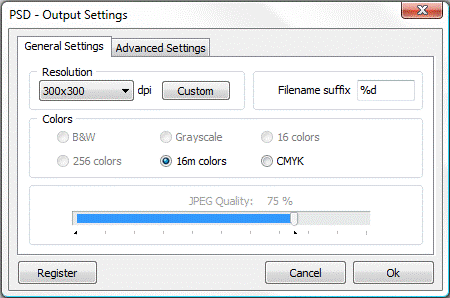
General Settings Tab
Resolution sets the PSD resolution.
Colors tab allows you to select the number of colors in the output document.
Filename suffix
Since the PSD format doesn’t support multi-page files, when printing documents that have more than 1 page, docuPrinter will produce a jpeg file for each page of the original document. The filename suffix allows you to control how the single page files will be named - if you set %d docuPrinter will add the page number to the file name. You can also control the number of digits used in the file name by replacing %d with %0Nd where N is the number of digits you want to have, for example %03d will force docuPrinter to produce files with names like this: 'filename001.psd', ... , 'filename010.psd', ... %04d will produce: 'filename0001.psd', ... , 'filename0010.psd', ...
Advanced Settings Tab
Text antialiasing
Graphics antialiasing
These options control the use of subsample antialiasing. Their use is highly recommended for producing high quality rasterizations. The subsampling box size should be 4 bits for optimum output, but smaller values can be used for faster rendering. Antialiasing is enabled separately for text and graphics content. Allowed values are None, 1 bit, 2 bits or 4 bits.
Note that because of the way antialiasing blends the edges of shapes into the background when they are drawn some files that rely on joining separate filled polygons together to cover an area may not render as expected with Graphics antialiasing at 2 or 4 bits. If you encounter strange lines within solid areas, try rendering that file again with Graphic antialiasing at 1 bit.
Image interpolation
Select On to enable image interpolation for all images, improving image quality for scaled images at the expense of speed.
Well Tempered Screening
If On, then the Well Tempered Screening algorithm is used for halftoning. Otherwise, a rational tangent algorithm is chosen, which will typically result in significant differences between the screen angle and ruling requested, and actually rendered. Currently, the performance of WTS is reasonably good when rendering to a full page buffer, but not optimized for banded mode.
Use CIE color space
Select On to remap the device-dependent color values through a CIE color space. This can improve the conversion of CMYK documents to RGB.
Create HP PCL-XL files
HP PCL-XP is a graphic language understood by many recent laser printers.
To create a HP PCL-XL file print to docuPrinter, then in the docuPrinter "Save As" screen (screenshot) select "HP PCL-XL document (*.pxl)" as output file format and press the Save button.
To configure the advanced output settings click the Configure Output button and the following screen will be displayed:
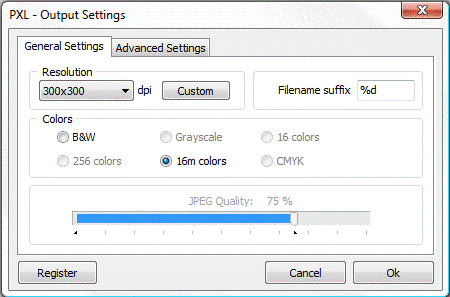
General Settings Tab
Resolution sets the PCL-XL resolution.
Colors tab allows you to select the number of colors in the output document.
Filename suffix
Since the PSD format doesn’t support multi-page files, when printing documents that have more than 1 page, docuPrinter will produce a jpeg file for each page of the original document. The filename suffix allows you to control how the single page files will be named - if you set %d docuPrinter will add the page number to the file name. You can also control the number of digits used in the file name by replacing %d with %0Nd where N is the number of digits you want to have, for example %03d will force docuPrinter to produce files with names like this: 'filename001.pxl', ... , 'filename010.pxl', ... %04d will produce: 'filename0001.pxl', ... , 'filename0010.pxl', ...
Advanced Settings Tab
Text antialiasing
Graphics antialiasing
These options control the use of subsample antialiasing. Their use is highly recommended for producing high quality rasterizations. The subsampling box size should be 4 bits for optimum output, but smaller values can be used for faster rendering. Antialiasing is enabled separately for text and graphics content. Allowed values are None, 1 bit, 2 bits or 4 bits.
Note that because of the way antialiasing blends the edges of shapes into the background when they are drawn some files that rely on joining separate filled polygons together to cover an area may not render as expected with Graphics antialiasing at 2 or 4 bits. If you encounter strange lines within solid areas, try rendering that file again with Graphic antialiasing at 1 bit.
Image interpolation
Select On to enable image interpolation for all images, improving image quality for scaled images at the expense of speed.
Well Tempered Screening
If On, then the Well Tempered Screening algorithm is used for halftoning. Otherwise, a rational tangent algorithm is chosen, which will typically result in significant differences between the screen angle and ruling requested, and actually rendered. Currently, the performance of WTS is reasonably good when rendering to a full page buffer, but not optimized for banded mode.
Use CIE color space
Select On to remap the device-dependent color values through a CIE color space. This can improve the conversion of CMYK documents to RGB.
Create TEXT files
Neevia docuPrinter TSE is also capable of extracting text information from the printed document. To enable text extraction, print to docuPrinter, then in the "Save As" screen (screenshot) select "Text document (*.txt)" as output file format and press the Save button.
Known limitations:
· The text extraction can be successful only if the printed document itself contains text information. If the document is an image, drawing, metafile, etc, the printer driver will not be able to extract any text.
· In some cases the printing application sends the text or parts of the text as glyphs. The glyphs codes cannot be converted back to character codes and the text file will contain unreadable characters.
· The coordinates of the beginning text are reported by the printing application. The coordinates of the end of the text is calculated by the driver, based on the resolution, font, and the actual characters in the text. A small variation of 1 to 5 pixels is normal.
· The coordinates of the text are saved as they are received from the printing application. Some applications, such as Quicken, change the coordinate system during printing. The part of the driver which generates the text output is not aware of this fact. In cases where the printing application changes the coordinate system, the coordinates saved to the text file may not be relative to the upper left corner of the image. There is no workaround for this issue.
· When printing contents of cells from Excel, the contents of the cells are not separated.
· Words cut in half. It is possible that the following line "This is a test line" is extracted from a document by the docuPrinter and is saved to the text file as "T his is a te st lin e". This issue is caused by the printing application, which sends the text as different commands. The printer driver is not aware if the text is "correct", the text will be saved exactly how it is received from the printing application. This is most likely to happen with applications such as Word and Notepad, when for example one part of a word or sentence is using one font and another part of the text is using a different font, or a word was typed and then later edited.
· When printing a document with Arabic text document with Unicode Text enabled, the Arabic text in the text output is garbage. The origin of the problem is that some languages use fonts that require shaping. Arabic is one of these. When an application prints Arabic text, no printer driver will receive the text itself but instead receives an array of glyph indices. The glyph index is font specific and points to a character location in the font. Because there is no way to convert back the glyph index into a Unicode character code, it is not possible to retrieve the Unicode text. It is caused by the design of the operating systems way of handling printing these kinds of fonts. This problem is found in all printer drivers that capture text, including the docuPrinter TSE.
Configure docuPrinter TSE from the administrative console (tweakDP)
This can be achieved by using tweakDP - a docuPrinter configuration tool intended for terminal servers/citrix administrators who need to apply the same or different output settings to multiple docuPrinter TSE users (tweakDP can be found in the docuPrinter TSE application group or in Program Files (x86)\Neevia.com\DocuPrinterTSE folder).
Before starting to make changes to any of user accounts you need to specify if users are allowed to modify their docuPrinter settings by selecting Users can modify settings or if they are not, check All users use Global Settings. The latter allows you to specify which docuPrinter settings terminal server clients will use. In the Existing Users interface select the account called Global Settings by clicking on it, implement your configuration then click Apply Settings.
You can also add multiple docuPrinter printers by clicking on the Manage button followed by Add. Each printer can be configured to have its own name and conversion settings. To apply your configuration to multiple users simply click Apply to Multiple Users.
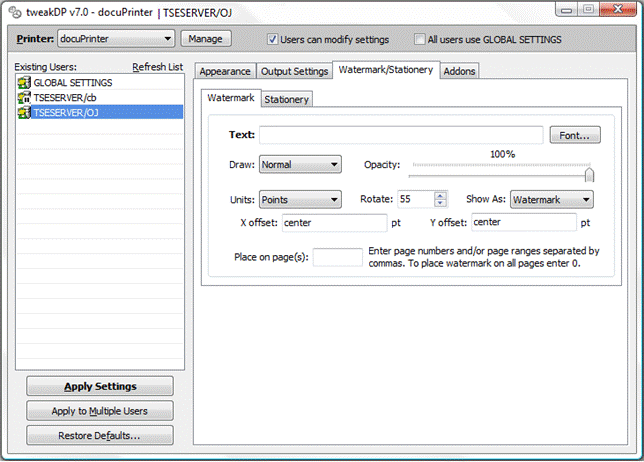
The following category of docuPrinter TSE settings, illustrated by the screenshot below, can be modified via tweakDP:
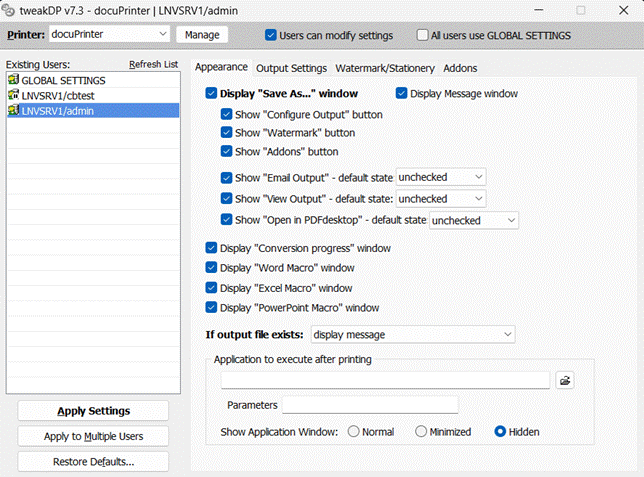
Appearance - the following options are available:
a. Display "Save As…" window - when unchecked it hides the main docuPrinter interface and the end-user will not be prompted for a file name.
b. Show "Configure Output" button - uncheck to hide the Configure Output button and prevent end-users from having access to output document settings.
c. Show “Watermark” button - when unchecked it hides the Watermark button in the Save As interface.
d. Show “Addons” button - when unchecked it hides the Addons button in the Save As interface.
e. Show "Email Output" and select the default state - uncheck this option to hide the "Email Output" checkbox, this way docuPrinter TSE will not be able to start the default email client and automatically attach the converted document.
f. Show "View Output" and select the default state - uncheck this option if you do not want docuPrinter TSE to automatically open the PDF file after the conversion process is done.
g. Show “Open in PDFdesktop” and select the default state - uncheck this option if you do not want docuPrinter TSE to automatically open the PDF file using PDFdesktop after the conversion process is done.
h. Display “Conversion progress” window - when checked it shows a window with the conversion progress.
i. Display “Word Macro” window - uncheck to hide the Word macro window.
j. Display “Excel Macro” window - uncheck to hide the Excel Macro window.
k. Display “PowerPoint Macro” window - uncheck to hide the PowerPoint macro window.
If the output file already exists, docuPrinter TSE can either display a message or directly:
- replace existing file
- append to existing file
- insert before
- auto-number the target file
To make docuPrinter TSE execute a specific application after the conversion is done simply enter the path to the desired application and specify the supported parameters.
Show application window - allows you to specify how the application executed by docuPrinter TSE will run:
- normal
- minimized
- hidden
Output Settings - the following options illustrated in the screenshot below are available:
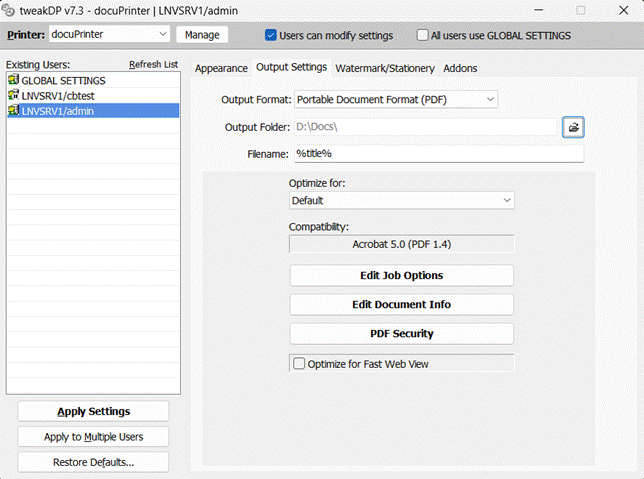
a. Output Format - allows you to select the desired output format. The default is PDF.
b. Output Folder - use this option to specify the path to the folder where all output files will be saved.
c. Filename - allows you to control the output file naming. Each of the following or a combination of them can be used:
%title%
%date%
%time%
%guid%
d. Optimize for - allows you to select predefined settings for the resulting PDF file.
e. Edit Job Options - allows you to change the default PDF settings.
f. Edit Document Info - use this option to specify additional information about the resulting PDF file like: title, subject, author, keywords.
g. PDF Security - allows you to define the encryption type and the security settings that will be applied to the resulting PDF document.
h. Optimize for Fast Web View - by selecting this option
Watermark/Stationery
Watermark - this option allows for a watermark to be placed on the resulting PDF file. Enter your text and select the desired font. By modifying the values for X Offset, Y Offset and Angle you can change the watermark position on the resulting document. To specify the opacity level simply position the cursor on the desired value.
Enter 0 in the "Place on page(s)" textbox to place the watermark on all pages otherwise enter page numbers separated by commas.
Stationery - In case you want to use an existing PDF file as a stationery click on the "Stationery" tab and enter the path to the file. To have the stationery appear an all your pages enter 0 in the "Place on page(s)" textbox otherwise enter page numbers separated by commas.
Make sure you click the Apply settings button after you are done specifying your settings.
Addons - in this interface you can configure docuPrinter to upload the converted document to a specified server via the following protocols:
HTTP - check the corresponding protocol checkbox then click Configure to specify the server URL address (www.server.com). If the receiving server requires an username and password you need to check the Secure transfer (SSL) checkbox and provide the credentials. Check Disable UI if you do not want the user interface to be displayed during the file transfer process.
FTP - after selecting this protocol to transfer the converted document to a remote server click the Configure button and type in your server address (ftpserver.com) along with username and password.
In case your server allows anonymous connections simply check Log on anonymously without typing anything in the username and password fields. To upload the file to a specific folder on the server, type its name in the Folder to upload to textbox. Check Disable UI if you do not want the user interface to be displayed during the file transfer process.
SMTP - use this protocol to have docuPrinter transfer the converted file to a mail server.
Click Configure and provide the server address (usually it’s something like mail.server.com) and select the Authentication type. If None is used you do not have to provide a username and password. When Default is selected you need to type in your credentials specify the recipient’s address in the To Address field along with a From Address. You can also add a Subject along with a Message Body. Check Disable UI if you do not want the user interface to be displayed during the file transfer process.
Using PDFdesktop to create and/or manipulate PDF files
Neevia PDFdesktop is an application that allows you not only to create PDF but to manipulate existing PDF files giving you great flexibility and control over your documents. By using PDFdesktop you can perform actions like add headers and footers to an existing PDF, place a watermark, extract pages, resize a PDF document, encrypt , add/remove bookmarks, flatten form fields and many others. PDFdesktop comes in the same installer with docuPrinter Pro and TSE also.
How to use PDFdesktop
After installing the product open Programs -> Neevia DocuPrinter -> and execute PDFdesktop.
The interface below will be displayed.
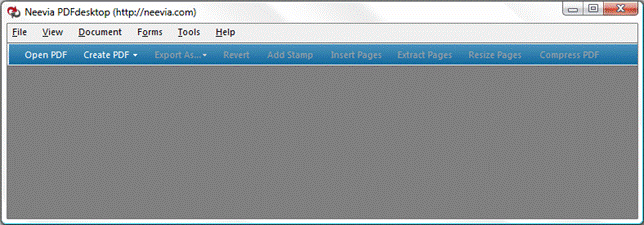
Working area contains six main menus: File, View, Document, Forms, Tools and Help. Underneath working area there is a toolbar containing by default the following buttons: Open PDF, Create PDF, Export As, Revert, Add Stamp, Insert Pages, Extract Pages, Resize Pages and Compress PDF. Buttons can be added or removed by clicking Tools followed by Customize Toolbar.
File menu
It can be directly accessed by using your mouse or via keyboard by pressing Alt-F at the same time and allows you to perform the following:
Open
Open a PDF document by selecting the Open option and navigating to folder where your PDF file is.
Create PDF
Create PDF From File, From Scanner, From Clipboard Image.
Create PDF from File - you will have to navigate to the file that you want to convert to PDF click Open and select the conversion options in the docuPrinter interface - this is valid mostly for Microsoft Office documents. For the rest of supported formats the conversion process will start immediately after you select the file to be converted.
Create PDF from Scanner - this option takes you to an interface in which you have to select any of the installed scanning devices and specify the input settings such as Sides, Color mode and Resolution. Once you are done with the above settings in the Output section select New PDF Document. In case you want to add the new file to an already open PDF document select Append to open document. To obtain a PDF/A compatible file check Make PDF/A compatible.
If you need to create a PDF document that contains a high quality image click on the Optimization cursor and move it toward the high quality setting.
Should you want to specify your own compression settings click on the Options button and select the compression algorithms for Color/Grayscale and Monochrome compressions.
Color/Grayscale supported compression algorithms: ZIP, JPEG, JPEG2000.
Monochrome compression algorithms: ZIP, Fax, JBIG2 Lossy, JBIG2 Lossless.
To set the image quality, position the cursor for both Color/Grayscale and Monochrome compressions on the desired position. The higher the quality the larger the file size. Once you are done click OK to go back to main scanning interface.
As you know when obtaining a PDF from a scanned image the resulting file is not searchable.
In order to make it searchable in the Scan to PDF interface you will have to select Make Searchable (Run OCR). Click on the Options button to specify the Primary OCR Language. Check Auto rotate image to have the image oriented as portrait. To avoid skew distortion check Auto straighten image.
After selecting all the settings click the Scan button to acquire the image and convert it into PDF.
Create PDF from clipboard image - using this option you will be able to create a PDF from an image that was placed in the clipboard memory space. Click the Control + Print Screen keys simultaneously then select From clipboard image to automatically create a PDF document using the image you had in your computer clipboard memory.
Save
this allows you to save a newly created PDF document.
Save As
it saves the file under a different name than the original one.
Export As
using this option you can export the currently open PDF into Text, TIFF, JPEG, PNG, PS (Postscript) or PDF/A.
Export As Text - works only if the PDF document is searchable. To check that in the main PDFdesktop interface click the Search button on the main toolbar and enter any word contained by the document you want to export from. If found that means your file is searchable.
Export As TIFF - generates a tiff image from the open PDF. When clicked, it displays a Save As window in which you can specify the destination folder. Click on the Settings button to specify if the resulting tiff document will be multipage or single page, Resolution, Colorspace (supported types: Monochrome , Grayscale, RGB , CMYK), Compression (None, LZW, ZIP) and Fill Order (MSB to LSB, LSB to MSB).
Advanced Settings Tab - in this interface you have the following options:
Text antialiasing, Graphics antialiasing: both control the use of subsample antialiasing.
Their use is highly recommended for producing high quality rasterizations. The subsampling box size should be 4 bits for optimum output, but smaller values can be used for faster rendering.
Antialiasing is enabled separately for text and graphics content. Allowed values are None, 1 bit, 2 bits or 4 bits. Note that because of the way antialiasing blends the edges of shapes into the background when they are drawn some files that rely on joining separate filled polygons together to cover an area may not render as expected with Graphics antialiasing at 2 or 4 bits. If you encounter strange lines within solid areas, try rendering that file again with Graphic antialiasing at 1 bit.
Image interpolation - select “On” to enable image interpolation for all images, improving image quality for scaled images at the expense of speed.
Well Tempered Screening - if “On”, the Well Tempered Screening algorithm is used for halftoning. Otherwise, a rational tangent algorithm is chosen, which will typically result in significant differences between the screen angle and the ruling requested, and actually rendered. Currently, the performance of WTS is reasonably good when rendering to a full page buffer, but not optimized for banded mode.
Use CIE color space -select “On” to remap the device-dependent color values through a CIE color space. This can help in improving the conversion of CMYK document to RGB.
Page size from:
Crop box - this defines the region to which the contents of the page are to be clipped (or cropped) when displayed or printed.
Media box - specifies the media size to which you print.
Export as JPEG - generates a jpeg image from the open PDF. When clicked, it displays a Save As window in which you can specify the destination folder. Click on the Settings button to specify Resolution, Colorspace (CMYK, RBG - full color, Grayscale). You can also specify the jpeg quality value (between 0 and 100) by moving the cursor to the left or right. All settings in the Advanced window are the same as the ones above used for the TIFF format.
Export as PNG - generates a png image from the open PDF. When clicked, it displays a Save As window in which you can specify the destination folder. Click on the Settings button to specify Resolution, Colorspace (Monochrome(B&W) , Grayscale, RGB 16, 256 and full color). All settings in the Advanced window are the same as the ones above used for the TIFF format.
Export as Postscript (PS) – this allows you to export a PDF into postscript.
Export as PDF/A – by using this option you can create a PDF/A-1b, PDF/A-2b, PDF/A-2u, PDF/A-3b and PDF/A-3u compatible documents. Note that PDF/A standard requires that resulting files must include embedded fonts, device-independent color and XMP metadata.
Attach to email
when used, the default email client is automatically opened and your PDF file is attached and ready to send. All you have to do after that is enter the recipient’s email address.
Revert
this undoes the last change you made in the current PDF document.
Close
this command closes the currently open document.
prints the open PDF document to the default printer or the one you select.
Exit
closes PDFdesktop.
View menu
It can be directly accessed by using your mouse or via keyboard by pressing Alt-V at the same time and allows you to perform the following:
a. Refresh the window content after changes were made.
b. Enable, disable PDFdesktop native toolbar and the viewer Toolbars and/or Scrollbars.
c. Fit page - when selected it resizes the page so it fits entirely in the document pane.
d. Fit width - forces the page to fit the width of the window.
e. Fit height - when selected it makes the page fit the height of the window.
f. Actual size - this shows the page at actual size.
g. Display Document In Safe Mode - use this option in case you get error messages from Acrobat Reader during the file opening process.
Document menu
It can be directly accessed by using you mouse or via keyboard by pressing Alt-D simultaneously and allows you to perform the following:
Properties
when clicked it displays the Document Properties window which contains three tabs:
PDF information - allows you to view and/or change the content of Title, Author, Subject, Keywords and PDF Creator fields. In this window you can also Optimize the PDF file for Fast Web View by checking the correspondent checkbox which restructures the resulting PDF document for page-at-a-time downloading (byte-serving) which is especially important with large documents that can take a long time to download from a server. Click Apply after you make any change in this window.
Initial view - in this window you can view and/or set the PDF initial view options:
Navigation Tab - specifies which panels are displayed in the PDF viewer navigation pane.
Page Layout - specifies how document pages are arranged.
Magnification - use this to select at what zoom level the PDF document will appear when opened.
Open To Page - specifies the page that appears when the PDF document opens.
Window Options - these options allow you to specify how the PDF viewer window adjusts in the screen area when a PDF document is opened.
Resize Window To Initial Page - adjusts the document window to fit snugly around the opening page, taking into account the options that you selected under Document Options.
Center Window On Screen - instructs the PDF viewer to position the window in the center of the screen area.
Open In Full Screen Mode - maximizes the document window and displays the document without the menu bar, toolbar, or window controls.
User Interface Options - these options allow you to specify which parts of the PDF viewer interface - the menu bar, the toolbars, and the window controls - are hidden.
Note: you need to take into account that If you hide the menu bar and toolbars users cannot apply commands and select tools unless they know the keyboard shortcuts.
Encryption - in this tab you can view and/or change the security settings of the currently open PDF. In case you would like to encrypt a PDF document check Encrypt document, then select the encryption level from the Compatibility drop down box.
There are 4 options:
Acrobat 5.0 and later (PDF 1.4) enables 128 bit RC4 encryption
Acrobat 6.0 and later (PDF 1.5) enables 128 bit RC4 encryption
Acrobat 7.0 and later (PDF 1.6) enables 128 bit AES encryption
Acrobat 9.0 and later (PDF 1.7) enables 256 bit AES encryption
Encrypt All Document Contents - when you select this option both the document and document metadata will be encrypted. Search engines will not be able to access the document metadata when this option is used.
Encrypt All Document Contents Except Metadata - valid for Acrobat 6 and later. Only the content of a PDF document will be encrypted. Metadata remains fully accessible for search engines.
Require a Password to Open the Document - allows you to set a password for opening the encrypted PDF.
Change Permissions Password - prevents users from changing the permission settings. The user can view the file in Acrobat Reader but must enter the specified Permissions password in order to change the file’s Security and Permissions settings.
Permissions
Printing Allowed - Specifies the level of printing that users are allowed for the PDF document.
Possible values:
None - Disables printing.
Low Resolution (150 dpi) - Users can print but the resolution will not be higher than 150-dpi. Each page is printed as a bitmap image which may cause files to print at a slower speed. To make this option available set the Compatibility option to Acrobat 5 (PDF 1.4) or later.
High Resolution - Allow users to print at any resolution. PostScript and other printers that come with high-quality printing features can be used.
Changes Allowed - Enables the editing actions that are allowed in the PDF document.
Possible values:
None - when selected none of the changes listed in Changes Allowed drop down box, such as filling in form fields and adding comments are permitted.
Inserting, Deleting, And Rotating Pages - allows users to insert, delete, and rotate pages. Also bookmarks and thumbnails creation are permitted. This option works only for high (128‑bit RC4 or AES) encryption.
Filling in Form Fields and Signing Existing Signature Fields - when selected users can fill in forms and add digital signatures. Adding comments or creating form fields is not permitted. This option works only for high (128‑bit RC4 or AES) encryption.
Commenting, Filling In Form Fields and Signing Existing Signature Fields - users are allowed to add comments, digital signatures and fill in forms. Moving page objects or create form fields is not permitted.
Page Layout, Filling in Form Fields and Signing - users can insert, rotate or delete pages and create bookmarks or thumbnail images, fill out forms, and add digital signatures. Creating form fields is not permitted. This option works only for low (40‑bit RC4) encryption.
Any Except Extracting Pages - allows users to edit the document, create and fill in form fields, add comments and digital signatures.
Enable Copying of Text, Images, and Other Content - allows users to select and copy the contents of a PDF.
Enable Text Access For Screen Reader Devices For The Visually Impaired - when selected visually impaired users can read the document with screen readers. It doesn’t allow users to copy or extract the document’s contents. This option works only for high (128-bit RC4 or AES) encryption. Once done click Apply to enable you settings.
Header & Footer
by using this option you can add a header and/or footer to an existing PDF document or remove any header and/or footer previously added by PDFdesktop.
Add… - when you select this option an interface is displayed in which you will have to define all the settings related to both header and footer depending on which one you want to add. First click on the Select Font button to specify which font you’d like to use. Aside the font name and size in this window you also have the option to embed the font with or without subset. After that select Text color to specify both text color and color space (Gray, RGB, CMYK). To use a predefined variable click Insert Var and select a variable from the list.
In the Margins section you need to specify your values for Top, Left, Bottom and Right margins.
Select also the Units you want to use. Inches are selected by default. The other options are Points, Centimeters and Millimeters.
Once you’re done with the above settings type in the text you’d like to use as header and/or footer in its corresponding textbox. Everything you type in the six textboxes will appear left-aligned, centered or right aligned depending on which textbox you use.
Note: you can combine text with any of the existing variables and also define several lines of text in each textbox.
After defining your header and/or footer click Refresh preview to see how it looks like in your PDF document. By default the one shown first is the header - as indicated by the enabled Header Preview tab. To see how the footer looks like click Footer Preview followed by Refresh Preview.
In case you do not want your header and/or footer to appear on all pages (this is enabled by default) click Place on Pages check Pages and enter your page number and/or page ranges separated by commas. Example: 1,4,9, 12-17.
Once you’re done click Apply to add the newly defined header and/or footer to your PDF document.
Remove.. - this will remove any header and/or footer previously applied by Neevia PDFdesktop.
Stamp/Watemark
by using this option you can add a watermark/stamp to an existing PDF document or remove any watermark or stamp previously added by PDFdesktop.
Add … - when you select this option an interface is displayed in which you will have to define all the settings related to you stamp. Click on the Create stamp button to get started.
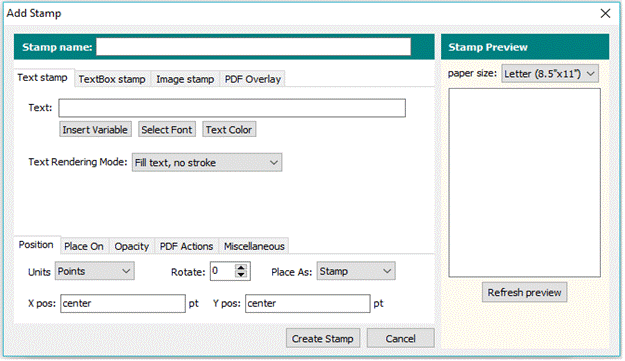
Stamp name - use this to set a name for the new stamp profile you want to create.
Stamp type:
Text stamp - only one line of text can be stamped;
TextBox stamp - multiple lines of text can be stamped;
Image stamp - allows you to specify an image that can be used as stamp;
PDF Overlay - allows you to specify an existing PDF file to be used as overlay.
To specify characteristics for Text stamp you have the following options that you can enable by clicking the buttons below:
a. Insert Variable - selects a variable from the list.
b. Select Font - defines both font name and size. In this window you also have the option to embed
the font with or without subset;
c. Text Color - defines both text color and color space (Gray, RGB, CMYK);
d. Text Rendering Mode - click the down arrow to select:
- Fill text, no stroke
- Stroke text, no fill
- Fill then stroke text
- Invisible text
 |
 |
 |
Example:
Fill text, no stroke Stroke text, no fill Fill then stroke text
TextBox stamp
To specify characteristics for TextBox stamp you have the following options that you can enable by clicking the buttons below:
a. Insert Variable - use this to select a variable from the list.
b. Select Font - defines both font name and size. In this window you also have the option to
embed the font with or without subset.
c. Text Color - use this option to define both text color and color space (Gray, RGB, CMYK).
d. Text Alignment - ( left, center or right )
e. TextBox Width, Height - enter values in points, inches, centimeters or millimeters. You can
also use text for both as a value which creates a rectangle that
contains the exact data you want to stamp.
f. Text Rendering Mode - click the down arrow to select:
- Fill text, no stroke
- Stroke text, no fill
- Fill then stroke text
- Invisible text
|
|
|
Example:
Fill text, no stroke Stroke text, no fill Fill then stroke text
Image stamp - allows you to specify an image that can be used as a stamp.
Click Browse to select the image you would like as stamp. Supported image types are: JPG, GIF, BMP, PNG and TIFF.
Image Width - enter value in pixels
Image Height - enter value in pixels
Image Scale - allows you to scale the image stamp. A scale of 50% makes the image stamp half of
the original image size, while a scale of 200% makes the image stamp double in size.
PDF Overlay - allows you to specify an existing PDF file to be used as overlay.
Click Browse to select the PDF file you would like to use as overlay. If multiple pages exist you can specify which page to be imported.
Scale – gives you the option to scale the PDF file that was selected as overlay. A scale of 50% makes the PDF overlay half of the original PDF size, while a scale of 200% makes the PDF overlay double in size.
After you finished with the above settings you can select:
Position - specifies the measurement Units (Points, Inches, Centimeters or Millimeters), Rotation angle, Stamp placement (as stamp: over the page content or watermark: under the page content) and the X, Y coordinates. For the X coordinate you can use as values, instead of numbers center, left and right - as the name suggests they will position the watermark in the center of the page, on the left or right. For Y you have center, top and bottom which will place the watermark in the center of the page on top or in the bottom. To position your watermark on the right lower corner use X=right and Y=bottom.
Place On - specifies the pages to stamp. Check "All pages" to place the stamp on all pages in the PDF file or "Pages" to specify the page numbers.
Opacity - specifies how transparent the stamp should be. A value of 100 means that the stamp is completely opaque, while a value of 0 means that the stamp is invisible.
Miscellaneous - allows you to Enable stamp removal in case later you need to remove the stamp, use the page’s CropBox to position the stamp and/or use the page rotation parameter. The page rotation parameter specifies the number of degrees by which the page should be rotated clockwise when displayed or printed.
In order to see the stamp position, click the Refresh Preview button on the right-hand side. This is also valid when you edit an existing stamp which can be done by clicking Edit stamp in the Stamps window.
Once you finished defining a stamp you can save it into a file that contains all the settings you selected. To do that in the Stamps graphic interface click Save Stamps and select your destination folder. The file containing your stamp settings can also be used by docuPrinter during the conversion process. You will have to specify the path to it in the Watermark/Stamp interface when the docuPrinter Save As window is displayed. To load a previously saved file containing stamp settings in the same interface click Load Stamps.
Insert Pages
this option allows you to insert pages into the currently open PDF file from another document. When clicked it displays an interface in which you have to select the PDF document from which a page or pages will be extracted followed by a second one in which you can specify where exactly to insert the new pages. The file you insert pages from does not have to be strictly a PDF, it can be an Ms Office document (.doc, .rtf, .docx, .xls, .xlsx, .ppt, .pptx) an image (.tif, .tiff, .gif, .bmp, .jpg ) or a postscript file (.ps, .eps).
Type 0 if you want to insert everything after the last page. In the Insert pages section specify also which page(s) to insert - All pages, First, Last or if you want to make you own selection, in the Page textbox enter page numbers and/or page ranges separated by commas. Example: 1,3,4,7-9. Click OK to complete the insertion process.
Extract Pages
this option helps you extract one or more pages from a PDF file. In the Extract Pages interface enter the page number(s) to extract and/or page ranges separated by commas. Example: 1,4,6,7-9. In case you want to delete the extracted pages check Delete Pages After Extracting. You can also choose to save the extracted pages into separate PDF documents by checking Extract Pages As Separate Files.
Replace Pages
by using this feature you can replace one or more pages in a PDF document with another PDF page. When clicked it displays an interface in which you have to select the PDF document whose page(s) will be used as replacement followed by another interface containing two sections, one for the Original PDF document in which you can specify what page(s) to be replaced and another one for the Replacement PDF file in which you specify which page to be used as replacement.
Delete Pages
use this option to delete one or more pages from a PDF document. In the Delete Pages interface type in the pages to be deleted (from page number to page number) then click OK.
Resize Pages
use this option to change the page size of a PDF document and/or scale the content.
Change page size - this allows you to select the page size and orientation for the PDF document(s) you want to resize. In case you would like to define your own page size check Custom Page Size and enter your values for height and width specifying also the measurement units.
When Center is selected from the Place the original content in drop down box content will be placed in the center of the resized page. It also gives you other options like Left-top corner, Left-bottom corner, Right-top corner, Right-bottom corner, Left-center, Right-center, Center-top and Center-bottom.
Check the Scale checkbox to scale the content too. In case you would like to maintain the original proportions between the new page dimensions and content make sure that Constrain proportions when scaling is enabled. Resize page(s) - select All pages to resize the entire file or Pages to resize specific pages or page ranges. Enter page numbers and/or page ranges separated by comma. Example: 1,4,10-14.
Rotate Pages
by using this option you can rotate all pages in a PDF document or only the specified ones. In the Rotate Pages interface you will first have to select in which direction you want to rotate the pages (Clockwise 90 degrees, Counterclockwise 90 degrees or 180 degrees) then specify the Page Range which, by default is set on All.
In case you need to specify which pages to be rotated click Page and enter your page numbers and/or page ranges separated by commas. Example: 1,5,7,9-11. Once that is done select the orientation of the pages you want to rotate: Pages of Any Orientation, Portrait Pages or Landscape Pages and click OK to complete the process.
Scan to PDF
this feature allows you create a PDF document using an image acquired via a scanning device. In the Input section you will have to select the installed scanner, Sides, Color Mode and Resolution. You need to take into account the higher the scanning resolution the larger your PDF file will be. In the Output section you have the following options:
New PDF document
Append to the open document
Make PDF/A compatible
In case you would like to specify in greater detail parameters about quality and compression in the Optimization section position the quality cursor toward right for better quality and left for smaller size and lower quality then click the Options button. All compression settings are described in the Compress PDF files section below.
Check Make searchable (Run OCR) in case you would like PDFdesktop to perform an optical character recognition on the resulting PDF that contains the scanned image. To specify OCR settings click the Options button and select language along with Auto rotate image and Auto straighten image. These two options, even though they slow down the recognition process are useful in case you would like to obtain a portrait oriented image and eliminate the scanning angle also known as skew distortion.
Recognize Text Using OCR
The same OCR procedure described above can be used for existing PDF files that contain images. After you selected this option specify your Primary OCR language (use English if your document was written in this language) along with the page(s) you would like to have “OCR-ed” select All pages to “OCR” the entire file or Pages for specific pages or page ranges. Enter page numbers and/or page ranges separated by comma. Example: 1,4,7-9
Compress File
this feature helps you reduce the actual size of a PDF document. In the compression interface you can specify the settings to be used during the file compression process. First you need to select the compression compatibility level.
There are three options:
Acrobat 4 (PDF v1.3)
Acrobat 5 (PDF v1.4)
Acrobat 6 (PDF v1.5)
According to the compatibility level selected the following compression types can be used:
ZIP compression - this is a lossless algorithm which means that the content of your images will not change after compression. Basically ZIP works like this: it scans an image to detect patterns in it and replaces them by a single token. It can compress color, grayscale and monochrome images.
JPEG compression - designed specifically for compression of sampled continuous-tone (photographic) images and not for general data compression, JPEG is a lossy compression method. The compression results you can obtain using the JPEG algorithm depend on the image being compressed and the amount of loss that is acceptable. When JPEG is selected you can set the Image quality using values from 0 to 100. It can be used for color and grayscale images only.
Fax (CCITT) compression - designed to achieve efficient compression of monochrome (1 bit per pixel) image data at relatively low resolutions which means that it is useful only for bitmap image data, not for color images, grayscale images or general data.
JPEG2000 compression - defines a wavelet-based method for image compression. Compared to other methods such as regular JPEG or CCITT, JPEG2000 gives a better size reduction. Although the filter can reproduce samples that are lossless compressed, it is recommended only for use with color and grayscale images and not for general data compression. When JPEG2000 is selected you can set the Image quality using values from 0 to 100.
JBIG2 compression - designed for both lossless and lossy compression. Useful only for monochrome images, not for color images, grayscale images, or general data. Compared to CCITT, JBIG2 provides considerably better compression. The compression ratio it achieves depends strongly on the nature of the image. Even though the best compression level is achieved for images of text, JBIG2 also includes algorithms for compressing sections of an image that contain dithered halftone images (valid mainly for photographs). When JBIG2 is selected (lossy or lossless) you can set the Image quality using values from 0 to 10.
After you select your compression types you can check Create Object Streams which is valid only with Acrobat 6 (PDF v1.5). An object stream represents a stream that contains a sequence of PDF objects. This option allows a greater number of PDF objects to be compressed but tends to make the process much slower.
For even better compression results you should enable the removal of Bookmarks, Text Annotations, PDF Forms, Page Labels, PDF Layers and Article Threads by checking the corresponding checkboxes in the compression interface.
Add/Remove Bookmarks
by using this feature you can define new bookmarks in a PDF document, remove the existing ones and/or make changes to all bookmarks previously added by Neevia PDFdesktop.
The main purpose of a PDF bookmark is to give the user an easy way to navigate through a PDF document. As you probably know PDF bookmarks appear on the left side of the PDF reader window - in most viewers pressing F4 will toggle the visibility of the Bookmark panel.
To add a new bookmark in the Add/Remove Bookmarks interface click the New Bookmark button then type in the Bookmark Title.
In the Destination section select the Type of bookmarks you would like to create.
The following options are available:
GoTo Page - when clicked, it goes to a specified page in the current PDF document.
GoTo Remote Page - when clicked, it goes to a page in another PDF document.
Web Link - when clicked, it goes to a website address.
Open File - when clicked, it opens the specified document in its native viewer.
After that according to your selection enter the page number, path to a file, or web destination (URL) in the corresponding textbox.
In case you would like to edit a bookmark created with PDFdesktop click Edit and make the necessary changes. Click Remove to delete one bookmark at a time or Remove all to delete them all.
Attach a file
use this option to attach any file to the currently displayed PDF.
Forms menu
It can be directly accessed by using you mouse or via keyboard by pressing Alt-O simultaneously and allows you to perform the following:
Import Form Data
when clicked it displays an interface that helps you import interactive PDF form data from either an FDF or XFDF file which means that you can populate form fields in a PDF document without having to manually type in the data. Both formats are an XML version of the Acrobat form data format. As you probably know an interactive PDF form is defined as a PDF document that contains one or more fields for collecting information from a computer user or displaying custom information.
Export Form Data
use this option to export the contents of PDF form fields into an FDF, XFDF or XML document.
Flatten Form Fields
this allows you to remove the interactivity features of form fields in a PDF document and change their appearance so as to make the data entered or selected in them appear like regular text. Basically you make the form fields not editable while keeping the data.
Remove Forms
by using this feature you eliminate all interactive forms from a PDF document.
Tools menu
It can be directly accessed by using you mouse or via keyboard by pressing Alt-T simultaneously and allows you to perform the following:
Encrypt PDF
this option allows you to encrypt a PDF document and was already described in the Encryption section.
Decrypt PDF
this will remove all the security settings in a PDF document. If you are prompted for a password when opening the file that must be provided otherwise PDFdesktop will not be able to display your document.
Customize Toolbar
by using this function you can specify which buttons to be displayed on the main PDFdesktop toolbar.
Help menu
It can be directly accessed by using you mouse or via keyboard by pressing Alt-H simultaneously and gives you information about the product along with a link to the help file.
How to …
Append pages to a PDF document …
Let’s say you have a word document (file B) and want to append it to an existing PDF file (file A). For this:
a. Start MS Word and open file B;
b. Go File->Print ;
c. In the list of printer names, click the drop-down arrow and select docuPrinter;
d. Click OK;
e. In the docuPrinter “Save As” window select PDF file A as output file name …;
f. Click Save;
g. Click on the check box next to Append to Existing File;
h. Click Continue. File B is appended to the end of PDF File A. To view the new document, open PDF File A and scroll to the end to see the additional pages.
Encrypt a PDF document produced by docuPrinter TSE…
a. From your application print to docuPrinter;
b. In the docuPrinter Save As window click the Configure Output button;
c. Click the PDF Security button;
d. Check the Use security checkbox;
e. Select the low or high encryption algorithm;
f. Enter the owner password;
g. Select other encryption options;
h. When you are finished, click OK.
Insert additional pages at the beginning of an existing PDF
In your application click File -> Print, select docuPrinter as a printer and click OK. When the "Save As" window comes up locate and select the PDF file you want to insert pages into as output file name and click the Save button. In the next menu check "Insert before", click "Continue" and you're done.